Stream to YouTube without OBS: in one click
When you go live on Zpod, tick “Also send to YouTube” and the same stream goes to your friends in the voice room and to your own YouTube channel at the same time. No OBS to install, no scenes to set up. Free.
Not on Windows? Open Zpod in your browser — nothing to install.
- 1080p 60 FPS, no Nitro
- No VPN needed
- Viewers install nothing
- No ads, no subscription
Set it up once
Paste the stream key from YouTube Studio into Settings > Streaming in Zpod once — the “Open YouTube Studio” button takes you straight there. You won't be asked again.
Your key is stored encrypted only on your PC; it's passed to our server when a stream starts and is never stored or recorded there. You set the stream's title, description and thumbnail in YouTube Studio.
- Add your stream key once
- Your key stays encrypted on your PC
- Title, description and thumbnail in YouTube Studio
- If it's your channel's first live stream, YouTube can take up to 24 hours to enable it
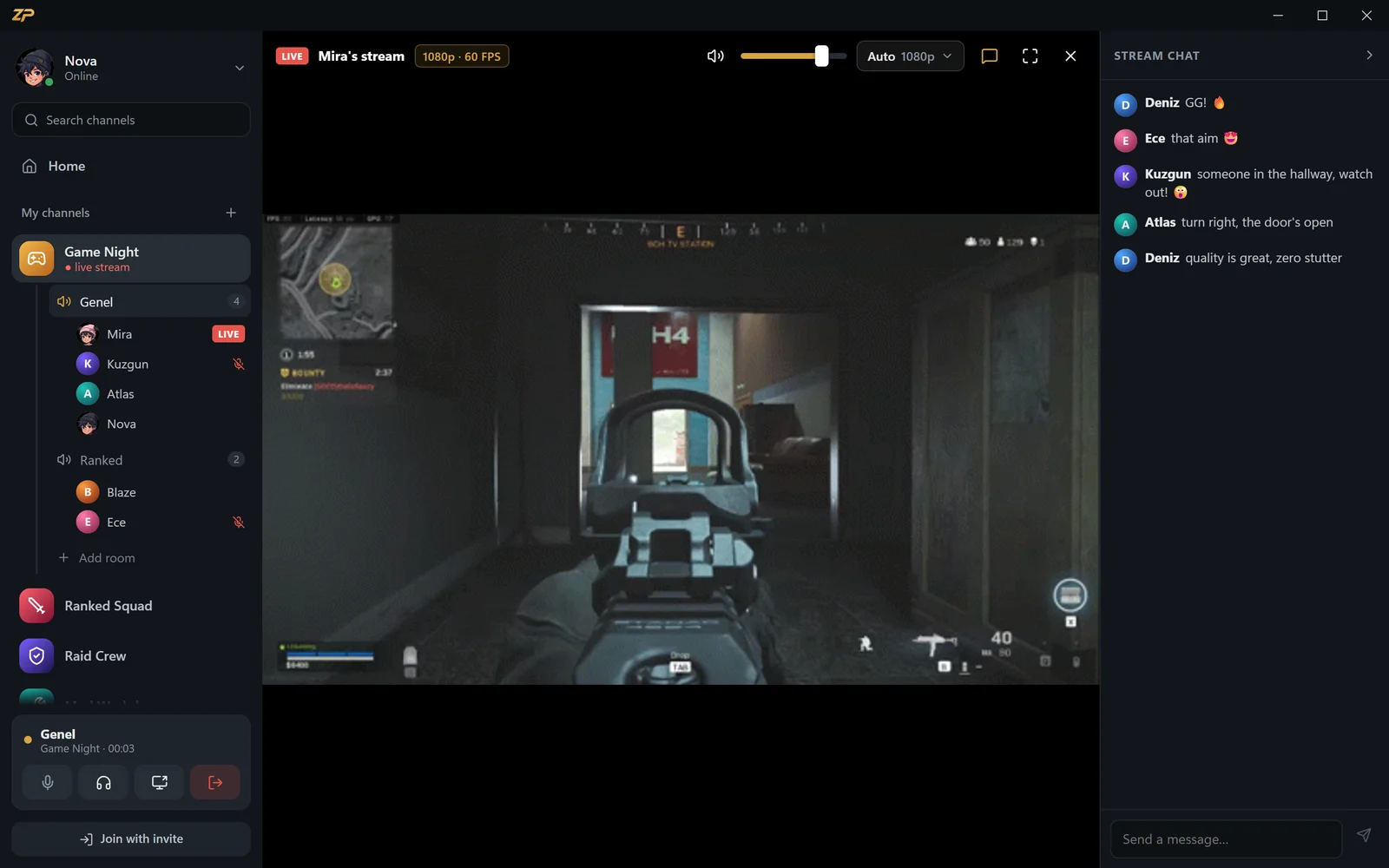
No quality loss
Your PC uploads once and our server relays it to YouTube. The video isn't re-encoded — it goes out in the quality you chose — and your game audio and mic go along.
The app shows the status of your YouTube connection: connecting, live and how many megabits per second are going out. If the connection drops, Zpod retries.
- One upload, two destinations
- Video isn't re-encoded
- Up to 1080p 60 FPS
- YouTube connection status in the app

Your friends stay with you
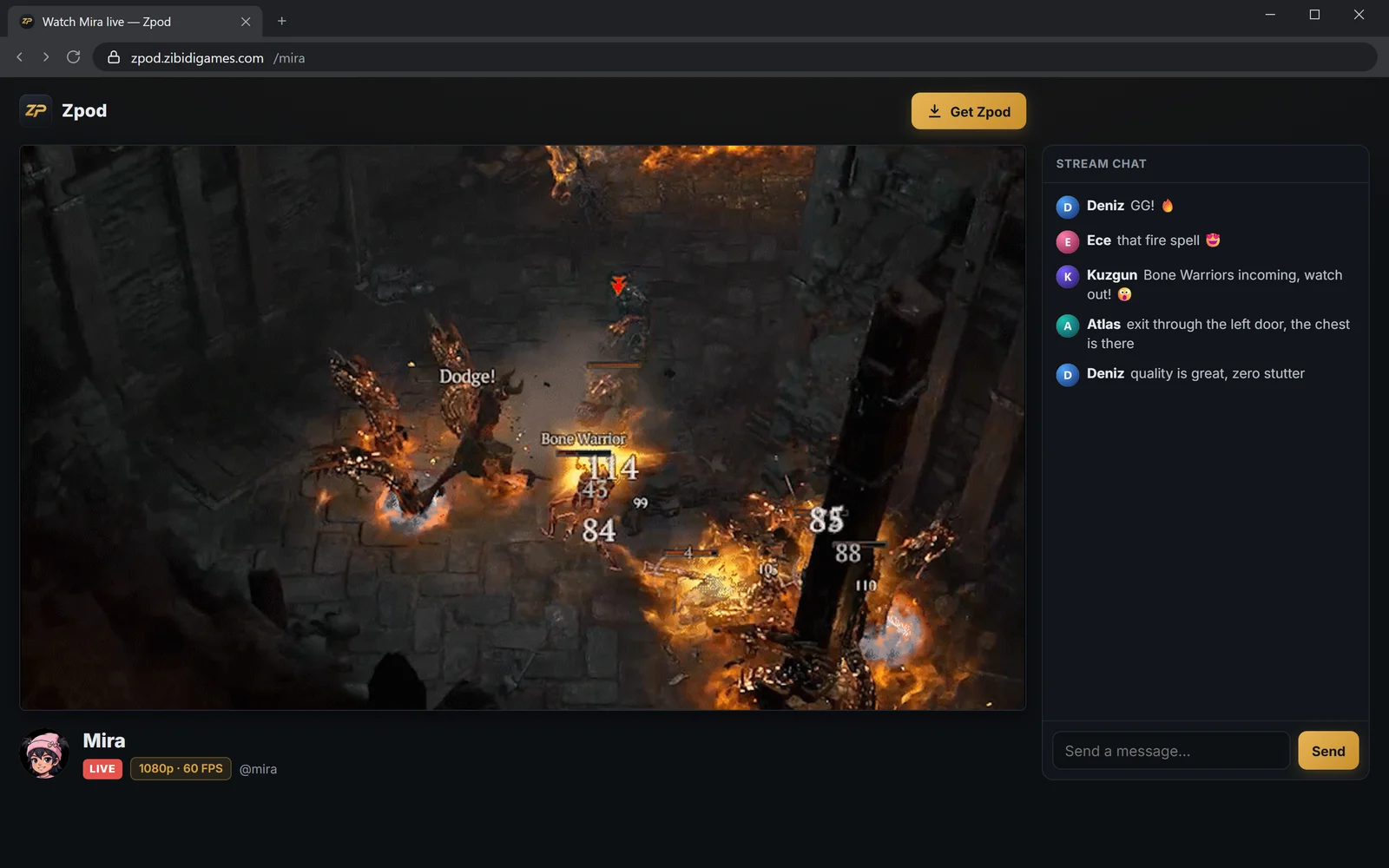
Keep talking with friends in the voice room while you stream on YouTube. They watch on Zpod; your followers watch on YouTube.
Make the stream public with a link and anyone who doesn't open YouTube can still watch in the browser at zpod.zibidigames.com/yourname.
- Voice chat and streaming together
- Friends on Zpod, followers on YouTube
- Also watchable in the browser via link
- No OBS or extra software
Go live on YouTube in 3 steps
Paste your key once
Add the stream key from YouTube Studio in Settings > Streaming. You won't be asked again.
Tick “Also send to YouTube”
One checkbox when you start the stream; Zpod handles the rest.
Live in two places at once
Friends watch on Zpod, followers on YouTube.
Streaming to YouTube FAQ
Do I need OBS to stream to YouTube?
No. Zpod does the streaming itself; to send it to YouTube you tick one box when you go live.
Where do I find my stream key?
It's shown as the “stream key” in the live streaming section of YouTube Studio. The “Open YouTube Studio” button in Zpod takes you there.
Is my stream key safe?
Your key is stored encrypted only on your PC. It's passed to our server when a stream starts and is never stored or recorded there.
What quality goes to YouTube?
The quality you pick in Zpod, up to 1080p 60 FPS; the video isn't re-encoded. The upload speed shown next to each quality is based on YouTube's needs.
Can I stream to YouTube from the browser or a Mac?
Streaming to YouTube is in the Windows app. The browser version has voice chat and watching.
More Zpod features
Discord alternative
Channels, voice rooms and 1080p streaming without Nitro — free.
Learn more →Voice chat
Voice rooms, push to talk, RNNoise noise suppression and whispers.
Learn more →Screen sharing
Share your screen or game with audio at 1080p 60 FPS.
Learn more →
Zpod home
Free Discord & Twitch alternative
Learn more →
Ready for game night?
Zpod is free. Download it or open it in your browser now — your friends are one invite code away.
No account yet? Sign up