Screen sharing with audio: 1080p 60 FPS, free
On Zpod you share your whole screen or just your game window, with game audio and your mic, at up to 1080p 60 FPS. Friends in the voice room watch with one click; make it public with a link if you like, and send it to YouTube at the same time.
Not on Windows? Open Zpod in your browser — nothing to install.
- 1080p 60 FPS, no Nitro
- No VPN needed
- Viewers install nothing
- No ads, no subscription
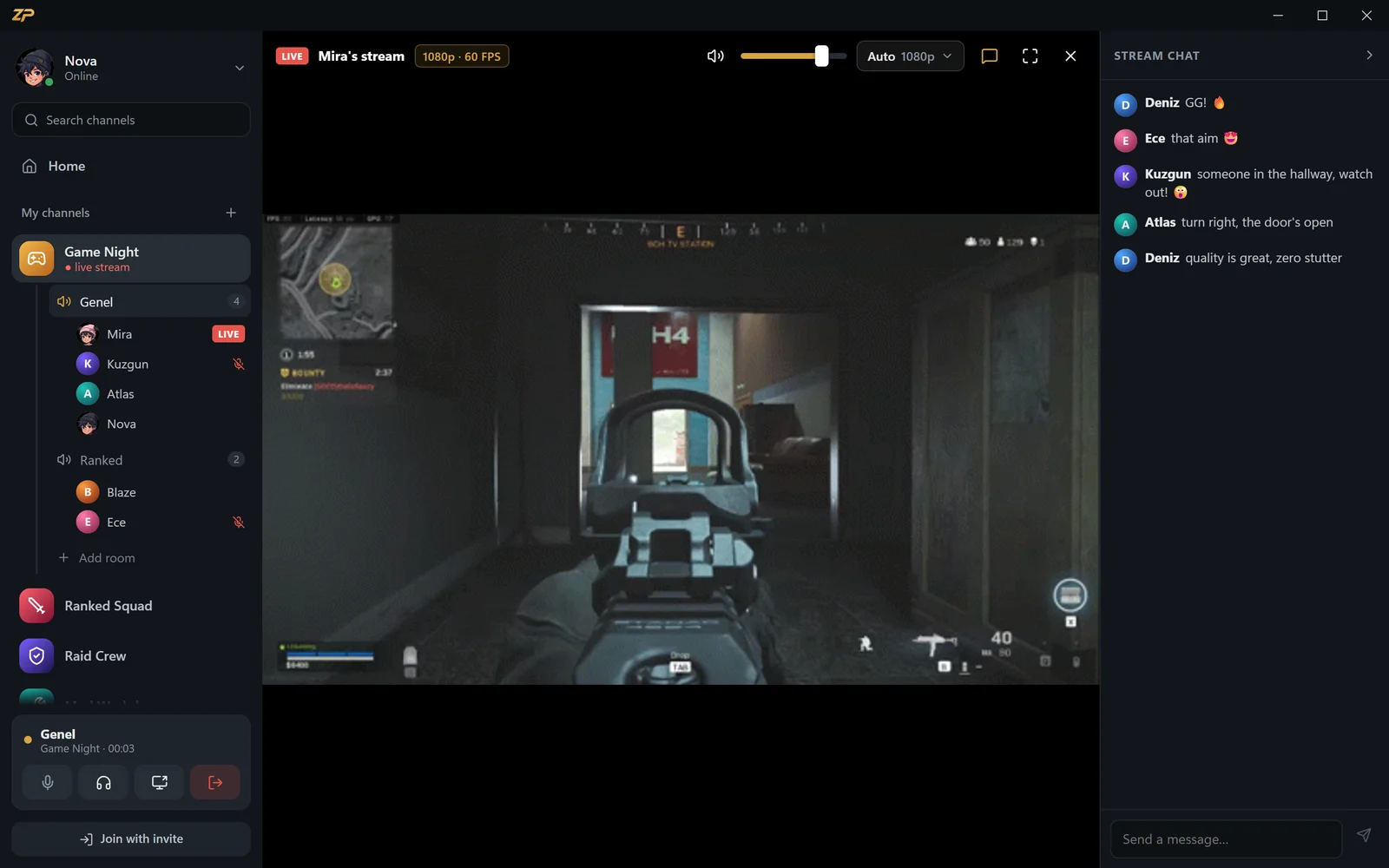
One window or the whole screen
When you go live, pick your whole screen or a single app window. Share just the game and your other windows and notifications stay out of the stream; for smooth video, the game's borderless window works best.
You choose the quality, from 480p up to 1080p 60 FPS, and Zpod measures your upload speed to recommend what fits. Adding your computer's audio and your mic is up to you.
- Whole screen or a single window
- Game audio and mic
- Quality from 480p to 1080p 60 FPS
- Recommended quality based on upload speed
Viewers pick their quality
Friends in the voice room click the LIVE badge next to your name to watch. Someone on a weak connection picks a lower quality, and your stream isn't affected.
Viewers chat in the stream chat, go full screen and adjust the volume, while you keep talking in the voice room.
- One-click watching from the LIVE badge
- Automatic or manual quality
- Stream chat
- Full-screen viewing
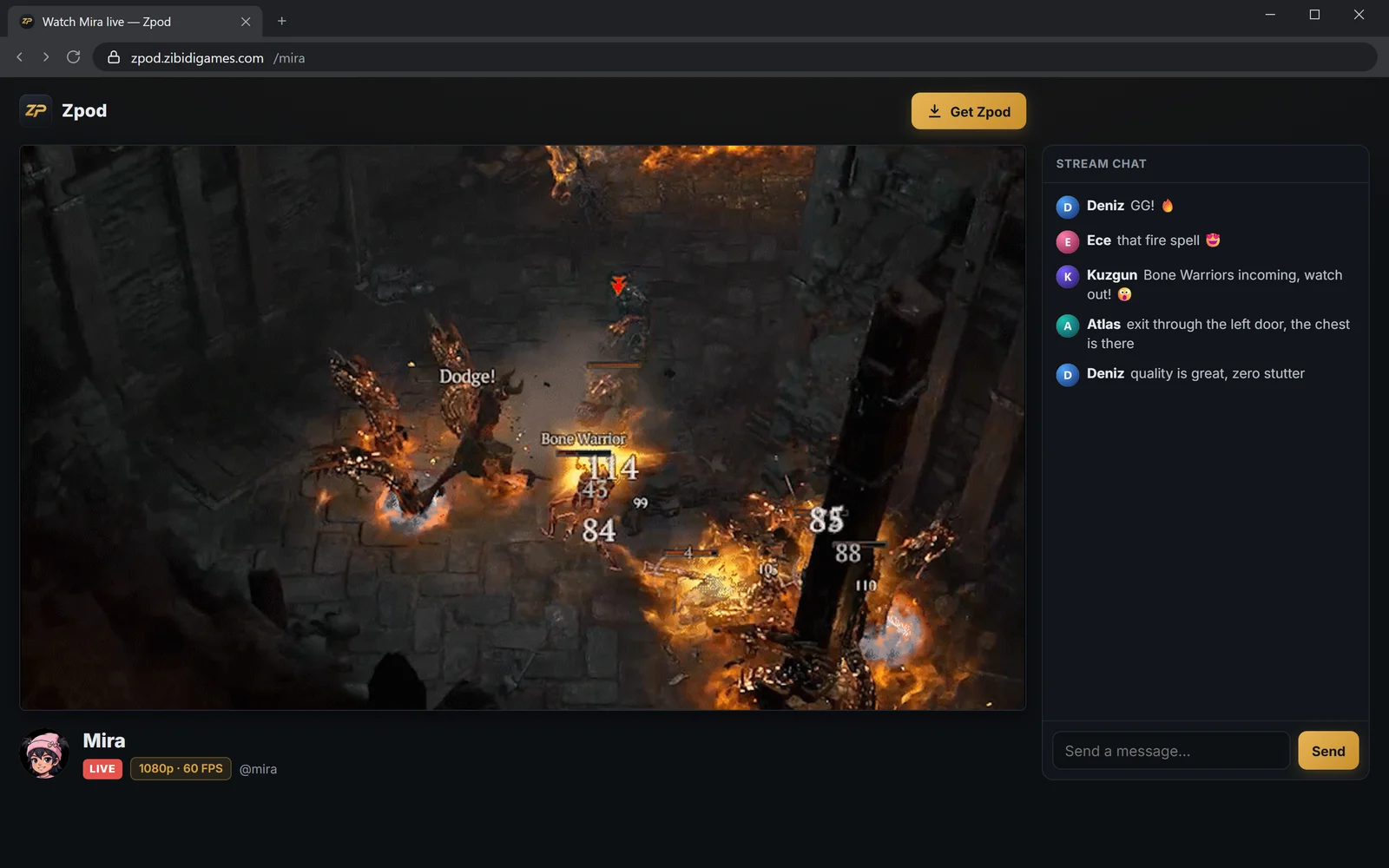

Make it public with a link
Turn on “Public with link” and your stream plays at zpod.zibidigames.com/yourname in any browser — no account, nothing to install, phones included.
Share the link on WhatsApp, Discord or X and it shows up with a preview image. There are no ads on the watch page.
- Watch in the browser without an account
- On computers, phones and tablets
- Preview image when shared
- No ads
Share your screen in 3 steps
Join a voice room
Click a voice room in your channel.
Click the screen icon
Use the screen icon at the bottom left to pick your whole screen or the game window; set the quality, computer audio and mic.
Go live
Friends watch from the LIVE badge; make it public with a link or send it to YouTube too.
Screen sharing FAQ
Does screen sharing include audio?
Yes. You can add your computer or game audio and your mic to the stream; you choose which when you go live.
What resolution and frame rate can I share at?
From 480p up to 1080p 60 FPS. Zpod measures your upload speed and recommends a quality that fits your connection.
Is screen sharing free, or do I need Nitro?
It's free. You don't need Nitro or any subscription for 1080p 60 FPS.
Do viewers need to install anything?
Nothing to install to watch a stream that's public with a link — a browser is enough. Friends in the voice room watch in Zpod.
Can I send my stream to YouTube too?
Yes. Add your stream key once, then tick “Also send to YouTube” when you go live; no OBS required.
More Zpod features
Discord alternative
Channels, voice rooms and 1080p streaming without Nitro — free.
Learn more →Voice chat
Voice rooms, push to talk, RNNoise noise suppression and whispers.
Learn more →Stream to YouTube
Go live on YouTube in one click, no OBS.
Learn more →
Zpod home
Free Discord & Twitch alternative
Learn more →
Ready for game night?
Zpod is free. Download it or open it in your browser now — your friends are one invite code away.
No account yet? Sign up